Viewing Workflow Executions
Inspect with the CLI
The compact execution view should show the workflow name/version, current status, input/output, and every task attempt. For API automation, use GET /api/workflow/{workflowId}?includeTasks=true; the Workflow API owns the response contract.
Success means the execution's identity, status, and task state match the run you intended to inspect. For failures, record the failed task's reasonForIncompletion, retry count, and worker ID before recovery.
Inspect with the UI
The Conductor UI presents the same durable execution as a diagram and timeline. You can open it:
- In Executions, after searching for workflows.
- In Workbench > Execution History
To view a workflow execution:
In Executions or Workbench, select the Workflow ID hyperlink.
Workflow execution details
The following tabs are available for each workflow execution:
| Tab Name | Description |
|---|---|
| Tasks > Diagram | Visual diagram of the workflow and its tasks. |
| Tasks > Task List | List of the task executions in this workflow, including details like the task name, task ID, status, and so on. |
| Tasks > Timeline | Timeline showcasing the duration and sequence of each task in the workflow. |
| Summary | Summary view of the workflow execution, which includes the workflow ID, status, duration, and so on. |
| Workflow Input/Output | View of the JSON payload for the workflow inputs, outputs, and variables. |
| JSON | View of the full workflow execution JSON, including all tasks, inputs, outputs, and so on. |
Workflow diagram view
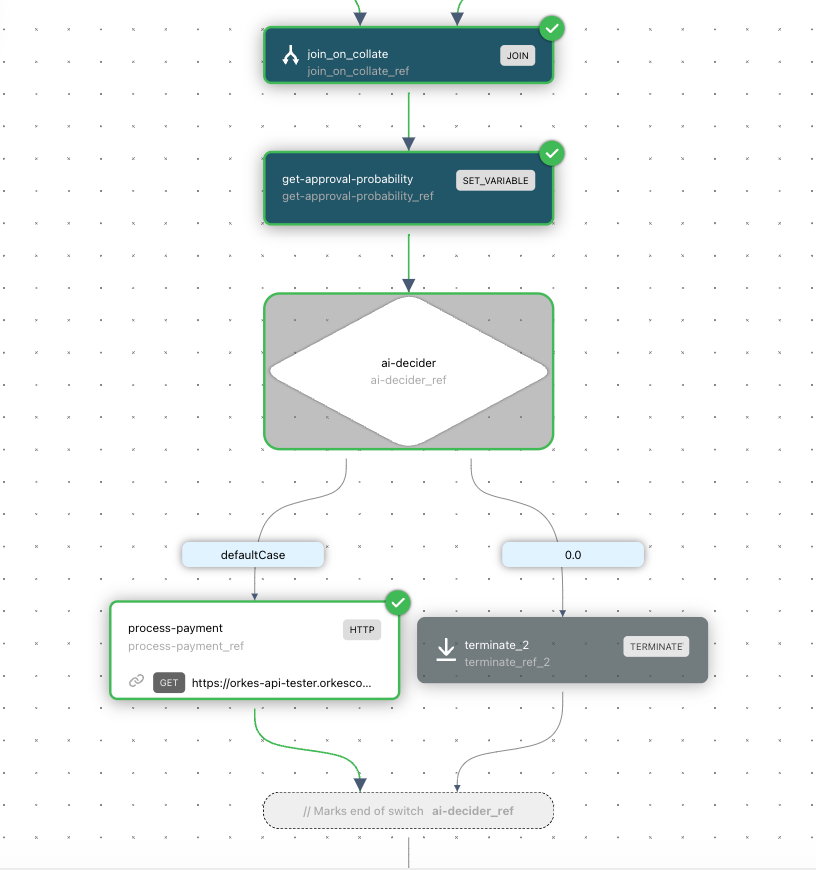
In Tasks > Diagram, you can view the workflow's exact execution path. The executed paths are shown in green and while other alternative paths are greyed out.
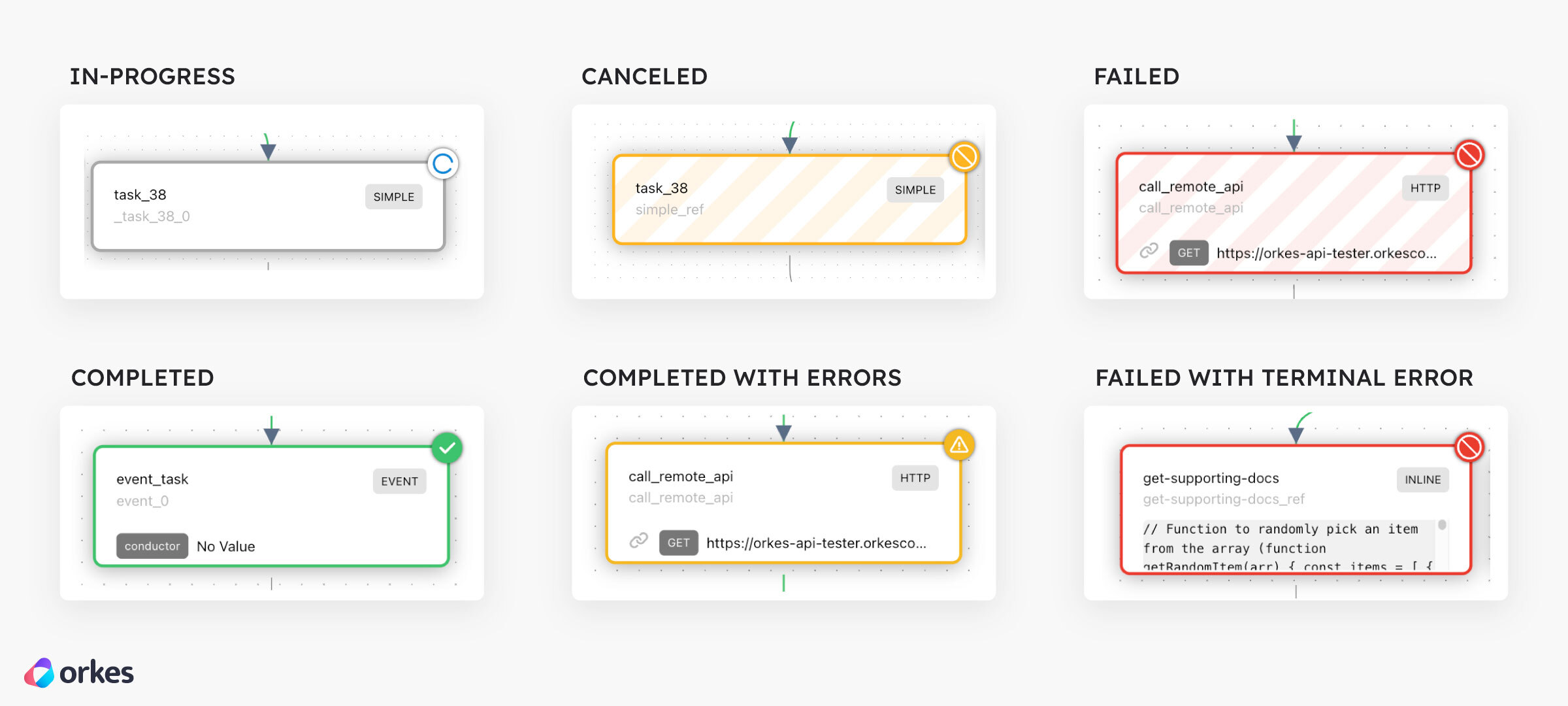
Each task status will also be clearly marked, highlighting any task errors.
Task execution details
You can also view a task's execution details by selecting a task from the following tabs:
- Tasks > Diagram
- Tasks > Task List
- Tasks > Timeline
This action opens a left-side panel that contains the following tabs:
| Tab Name | Description |
|---|---|
| Summary | Summary view of the task execution, which includes the task execution ID, status, duration, and so |
| Input | View of the JSON payload for the task inputs. |
| Output | View of the JSON payload for the task outputs. |
| Logs | View of the log messages logged by the task, if any. |
| JSON | View of the full task execution JSON, including retry count, start time, worker ID, and so on. |
| Definition | View of the task configuration used when executing the task. |
Limitations and next step
The execution view reports what Conductor persisted; detailed application logs remain in the worker's logging system unless the worker added task logs. Continue with Search executions when the workflow ID is unknown, or Debug and recover for a failed run.