Using Environment Variables
5-minute path
Create an environment variable, reference it as ${workflow.env.variable-name}, use .$ when the value is JSON, and keep secrets in secrets instead.
Creating environment variables
Environment variables can be created through the API or UI. For repeatable deployments, use the API and manage values per cluster or environment.
Create or update a plain-text variable:
curl -sS -X PUT "$CONDUCTOR_SERVER_URL/environment/payment-api-base-url" \
  -H "X-Authorization: $CONDUCTOR_AUTH_TOKEN" \
  -H "Content-Type: text/plain" \
  -d 'https://payments.example.com'
Create or update a JSON variable:
curl -sS -X PUT "$CONDUCTOR_SERVER_URL/environment/payment-api-config" \
  -H "X-Authorization: $CONDUCTOR_AUTH_TOKEN" \
  -H "Content-Type: text/plain" \
  -d '{"baseUrl":"https://payments.example.com","timeout":5000,"region":"us-east"}'
List all environment variables:
Related APIs:
To create an environment variable:
- Go to Definitions > Environment Variables from the left navigation menu on the Conductor cluster.
- Select + New environment variable.
- Enter the following details:
- Name: A unique identifier for the variable. This name will be used to reference the variable in workflow definitions.
- Value: The value to be stored as the variable.
- Value Type: Select Plain Text or JSON.
- Select Add to save the variable.
Using environment variables in workflow
To use an environment variable in a workflow, use the following expression:
Replace variable-name with the actual environment variable name. This expression dynamically retrieves the variable during workflow execution. Ensure that the referenced environment variable exists on the cluster before using it in a workflow.
If the environment variable is a JSON value, use dot notation to access its fields:
You can also use standard JsonPath notation:
Both forms are equivalent. To retrieve the entire JSON object, use:
The expression is validated when saving the workflow definition. An invalid field path will result in a validation error and the workflow cannot be saved.
Updating environment variables
Updating a variable changes the value used by future workflow executions without changing the workflow definition.
To update an environment variable:
- Go to Definitions > Environment Variables, and select the variable to update.
- In Value, enter the updated value.
- Select Edit to confirm.
Before changing a value used by production workflows, check which workflows reference it and verify the expected shape. JSON variables are especially easy to break if a field is renamed.
When to use environment variables vs secrets
| Use | Environment variable | Secret |
|---|---|---|
| API base URL | Yes | No |
| Feature flag | Yes | No |
| Region or tenant code | Yes | No |
| Numeric timeout or threshold | Yes | No |
| API token | No | Yes |
| Password or private key | No | Yes |
| Webhook signing secret | No | Yes |
Production notes
- Use environment variables for configuration, not credentials.
- Use stable names that do not include environment names when the same workflow is deployed to multiple clusters.
- Treat JSON variables as a contract. Changing field names can break workflows.
- Prefer small, focused variables over one large global config object.
- Verify permissions for the application identity that starts the workflow.
Examples
Using environment variables in a workflow
To illustrate the use of environment variables in a workflow, consider the following variable stored in Orkes Conductor.
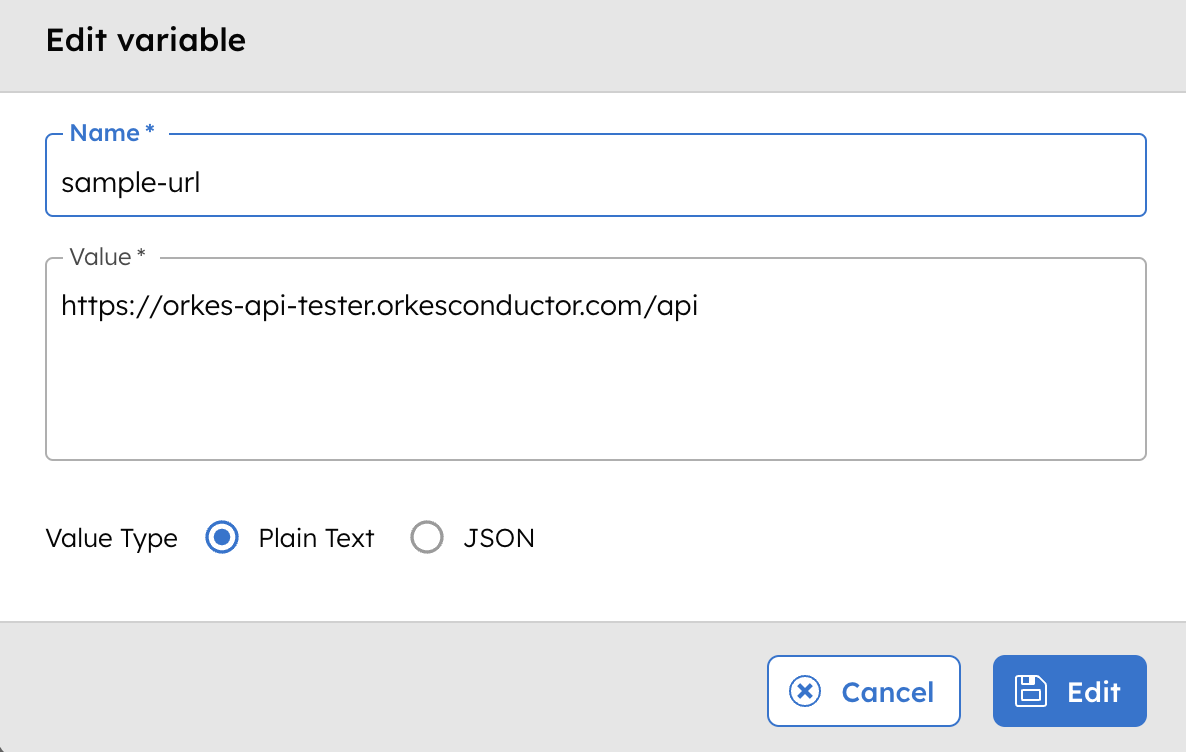
The following example defines a workflow that references the stored environment variable:
{
  "name": "sample-workflow",
  "description": "Workflow to demonstrate passing variables through environment variables",
  "version": 1,
  "tasks": [
    {
      "name": "http",
      "taskReferenceName": "http_ref",
      "inputParameters": {
        "http_request": {
          "uri": "${workflow.env.sample-url}",
          "method": "GET",
          "connectionTimeOut": 3000,
          "readTimeOut": "3000",
          "accept": "application/json",
          "contentType": "application/json",
          "encode": true
        }
      },
      "type": "HTTP"
    }
  ],
  "schemaVersion": 2
}
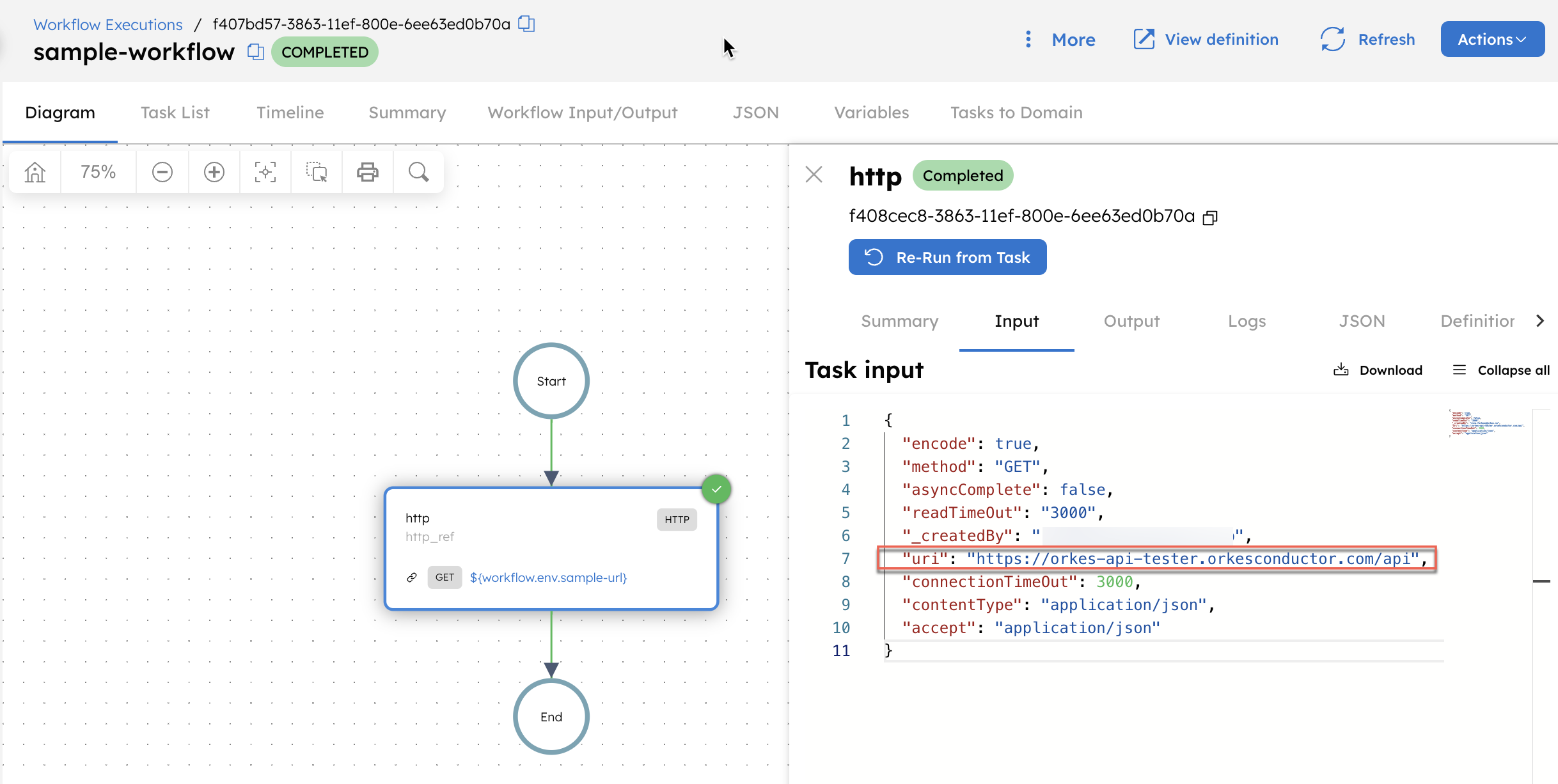
When this workflow runs, the expression ${workflow.env.sample-url} is dynamically replaced with the actual variable value. To verify that the stored variable is passed correctly, go to the workflow execution page, select the HTTP task, and check the Input.
Using JSON environment variables in a workflow
This example shows how to use a JSON environment variable in a workflow. Assume the following environment variable is stored in Orkes Conductor:
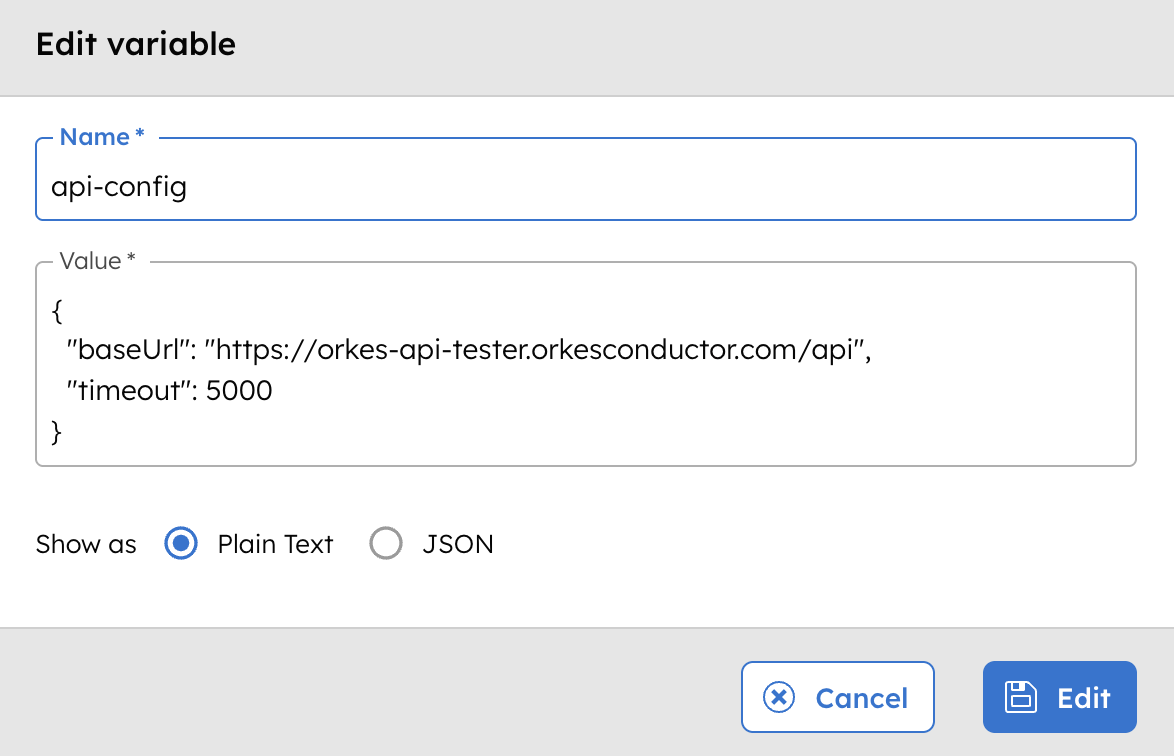
The following workflow references the stored JSON environment variable.
{
  "name": "json-env-example",
  "description": "Workflow demonstrating use of a JSON environment variable",
  "version": 1,
  "tasks": [
    {
      "name": "http",
      "taskReferenceName": "http_ref",
      "inputParameters": {
        "uri": "${workflow.env.api-config.$.baseUrl}",
        "method": "GET",
        "connectionTimeOut": "${workflow.env.api-config.$.timeout}",
        "readTimeOut": "${workflow.env.api-config.$.timeout}",
        "accept": "application/json",
        "contentType": "application/json",
        "encode": true
      },
      "type": "HTTP"
    }
  ],
  "schemaVersion": 2
}
In this example:
${workflow.env.api-config.$.baseUrl}accesses thebaseUrlfield of the JSON environment variable using dot notation.${workflow.env.api-config.$.timeout}accesses thetimeoutfield.
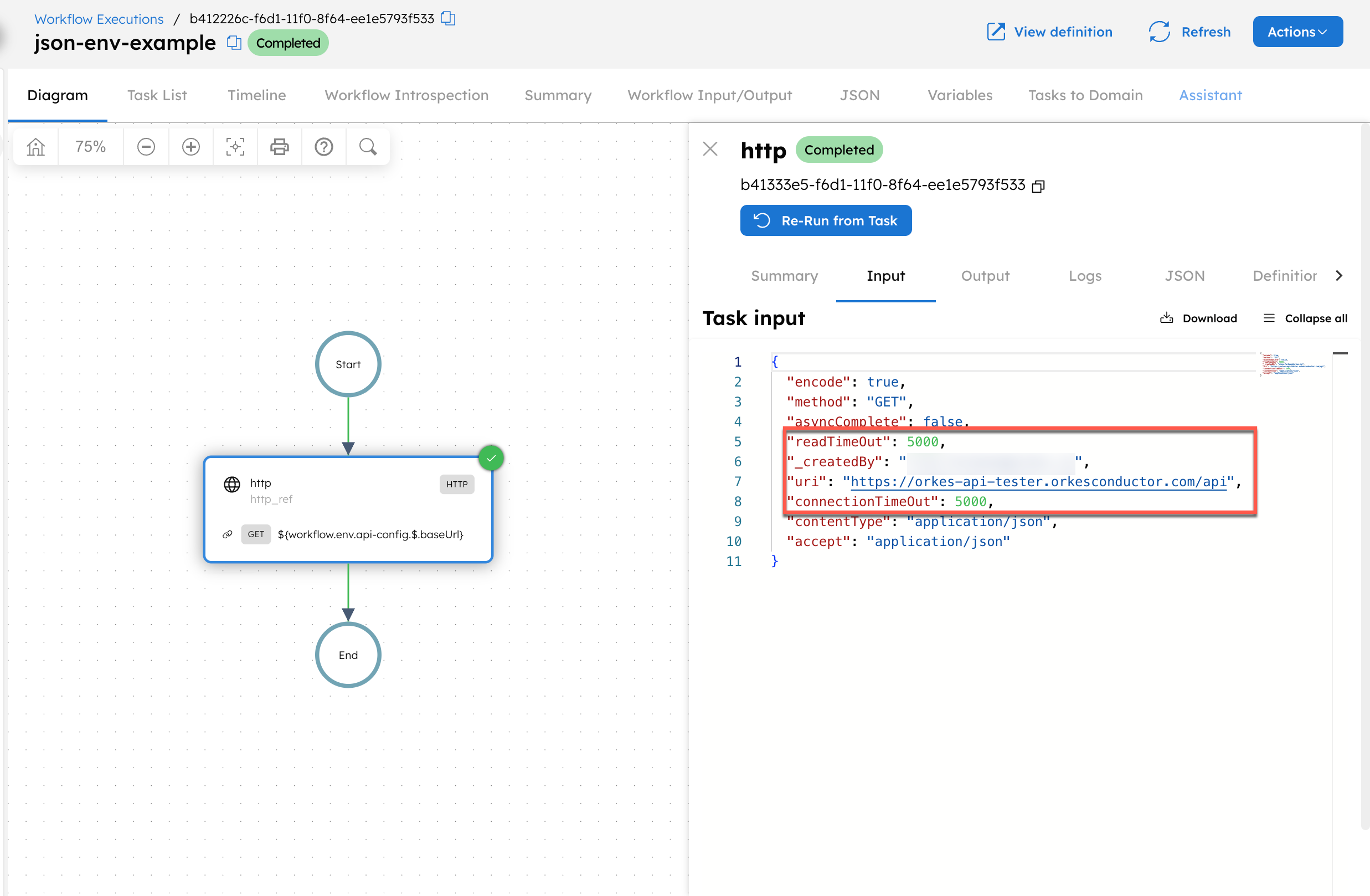
Run the workflow. To verify that the stored variable is passed correctly, open the workflow execution, select the HTTP task, and confirm that the resolved values appear in the Input tab.