Monitor HTTP Endpoints
This tutorial shows how to build a workflow in Orkes Conductor that monitors the health of an HTTP endpoint and sends an email alert when the endpoint is unreachable or returns an unexpected status code.
The workflow sends a GET request to a specified URL, evaluates the response, and triggers a SendGrid email notification if the endpoint returns anything other than HTTP 200.
In this tutorial, you will:
- Integrate SendGrid as the email provider
- Build a workflow that checks an endpoint and alerts on failure
- Run the workflow and verify the alert behavior
To follow along, ensure you have access to the free Developer Edition.
The endpoint monitoring workflow
This workflow polls a specified HTTP endpoint and routes execution based on the response status code. It uses a SendGrid integration to deliver alert emails when the endpoint check fails.
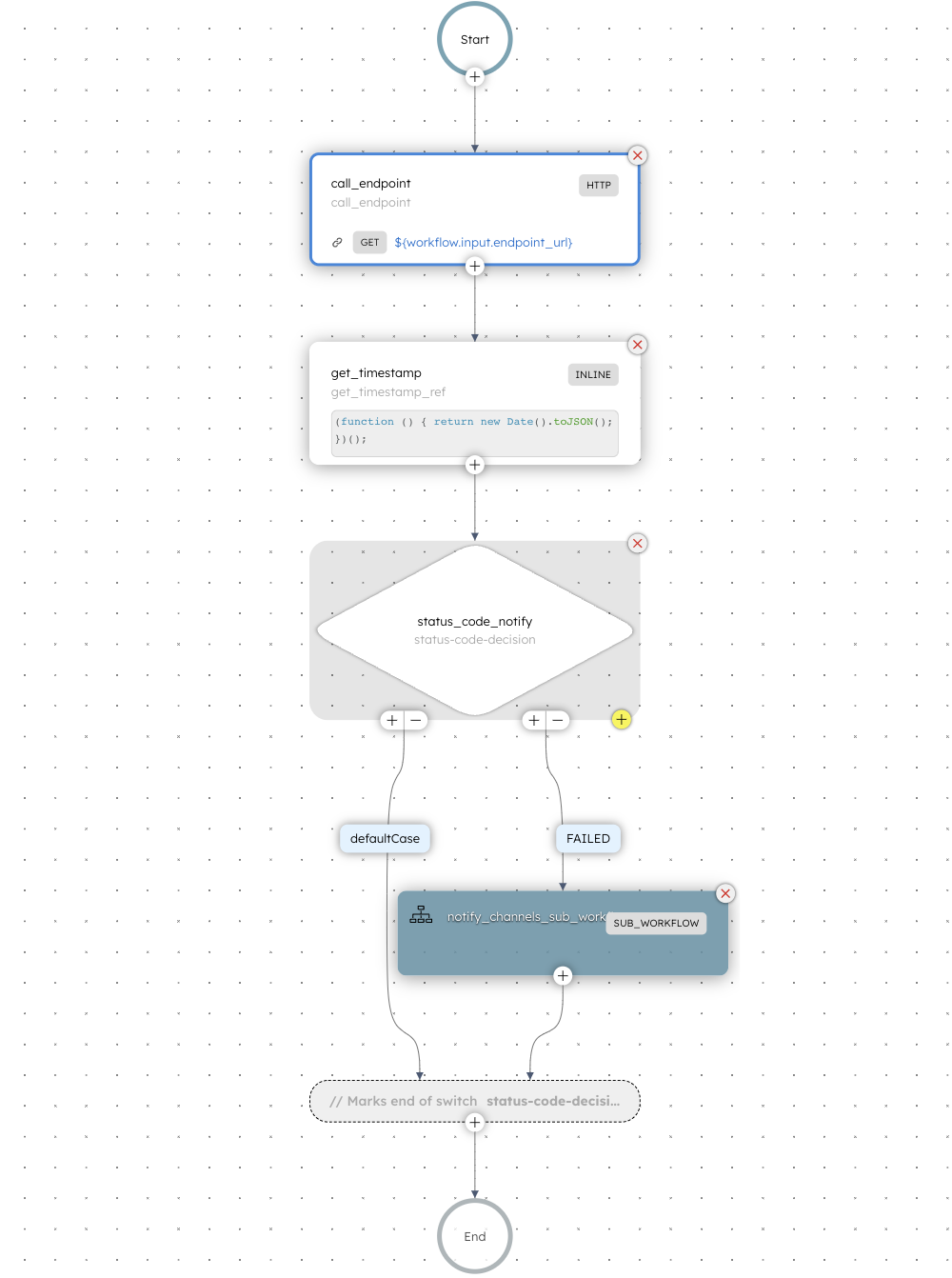
Here is the workflow that you'll build in this tutorial:
Workflow inputs:
- URL: The HTTP(S) endpoint to be monitored using the workflow.
- sender_email: The sender email address to display the alert.
- customer_email:The recipient email address for alert notifications.
Example input payload:
{
 "URL": "https://orkes.io/",
 "sender_email": "verified-sender@example.com",
 "customer_email": "alerts@example.com"
}
Workflow logic:
- The workflow begins with an HTTP task that sends a GET request to the specified endpoint.
- Next, the Switch task evaluates the HTTP status code to determine if the response indicates a success (200) or failure. Only HTTP 200 is treated as success; valid 2xx codes such as 201 and 204 also trigger the failure path.
- If the response status code is 200, a Set Variable task sets a success flag, and the workflow completes.
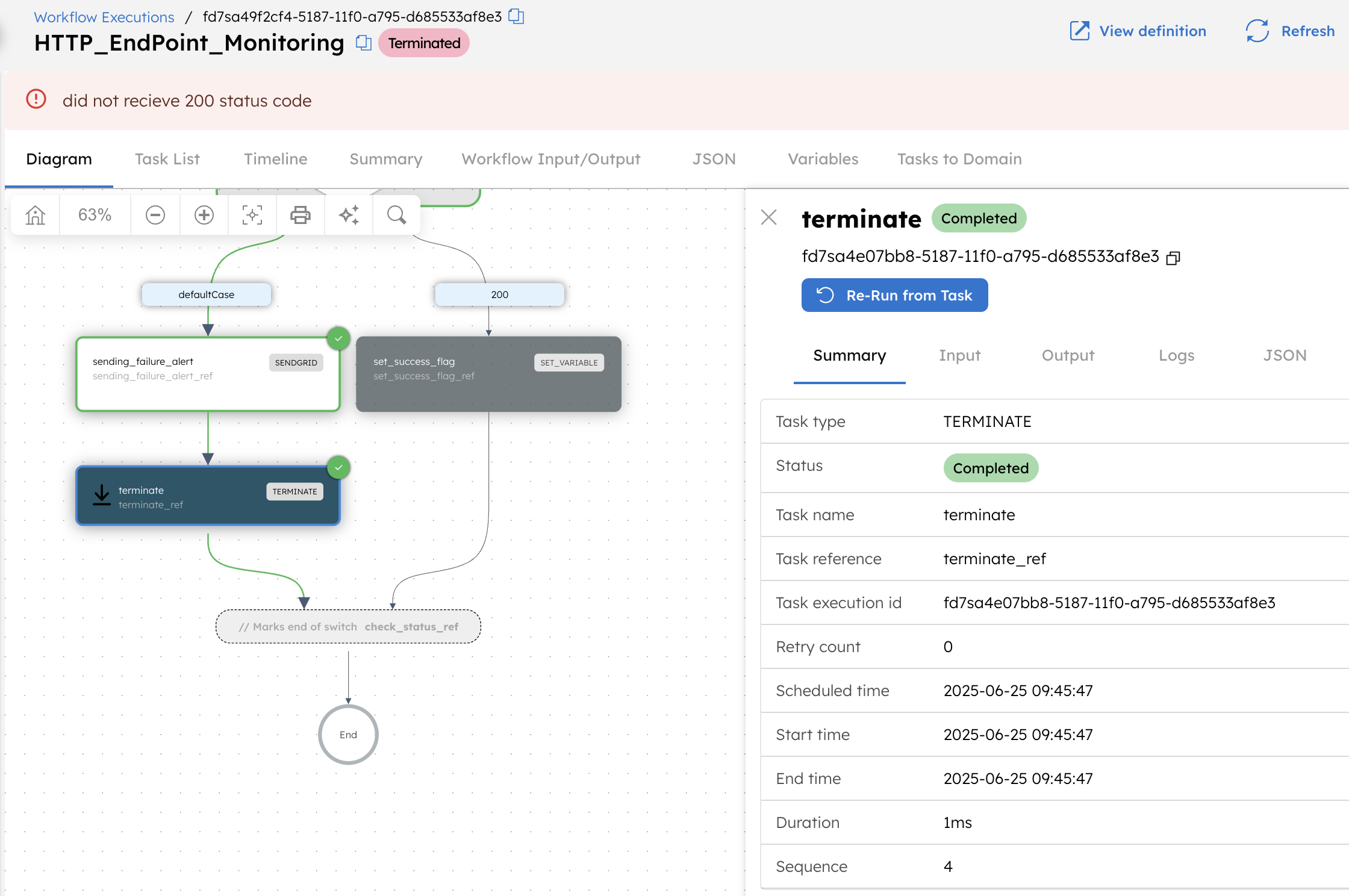
- For any other response or failure (e.g., DNS error), the Switch task routes the execution to the defaultCase path.
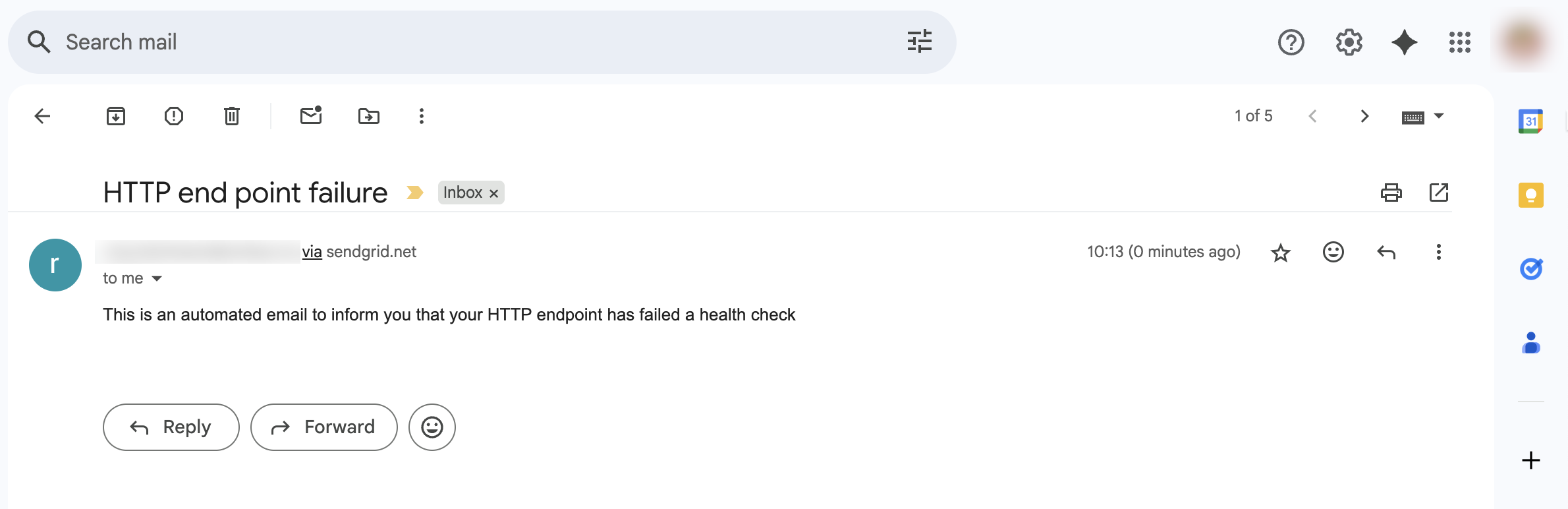
- In the defaultCase path, a SendGrid task sends an email notification using the provided sender and recipient addresses. The subject and message content indicate that the endpoint health check failed.
- After sending the alert, a Terminate task ends the workflow with the reason “did not receive 200 status code.”
Workflow output:
The workflow completes successfully on a 200 response, or terminates with an alert email and a failure reason for any other outcome.
Step 1: Integrate SendGrid
The workflow uses SendGrid to send alert emails. Before building the workflow, add a SendGrid integration to your Conductor cluster and verify a sender email address.
Get your SendGrid API key
Retrieve your API key from your SendGrid account.
Add the SendGrid integration
To add a SendGrid integration:
- Go to Integrations > Connections and Resources from the left navigation menu on your Conductor cluster.
- Select + New integration.
- Create the integration by providing the following mandatory parameters:
- Integration name: A name for the integration. Let’s use SendGrid.
- API Key: Enter your API key retrieved from the SendGrid console.
- Description: A description for the integration.
- Ensure that the Active toggle is switched on, then select Save.
For the SendGrid integration to work, the sender email must be verified.
To verify the sender email:
- Go to Marketing > Senders from the left menu on your SendGrid account.
- Select Create New Sender.
- Enter the following mandatory parameters:
- From Name
- From Email Address
- Reply to
- Company Address
- City
- Country
- Nickname
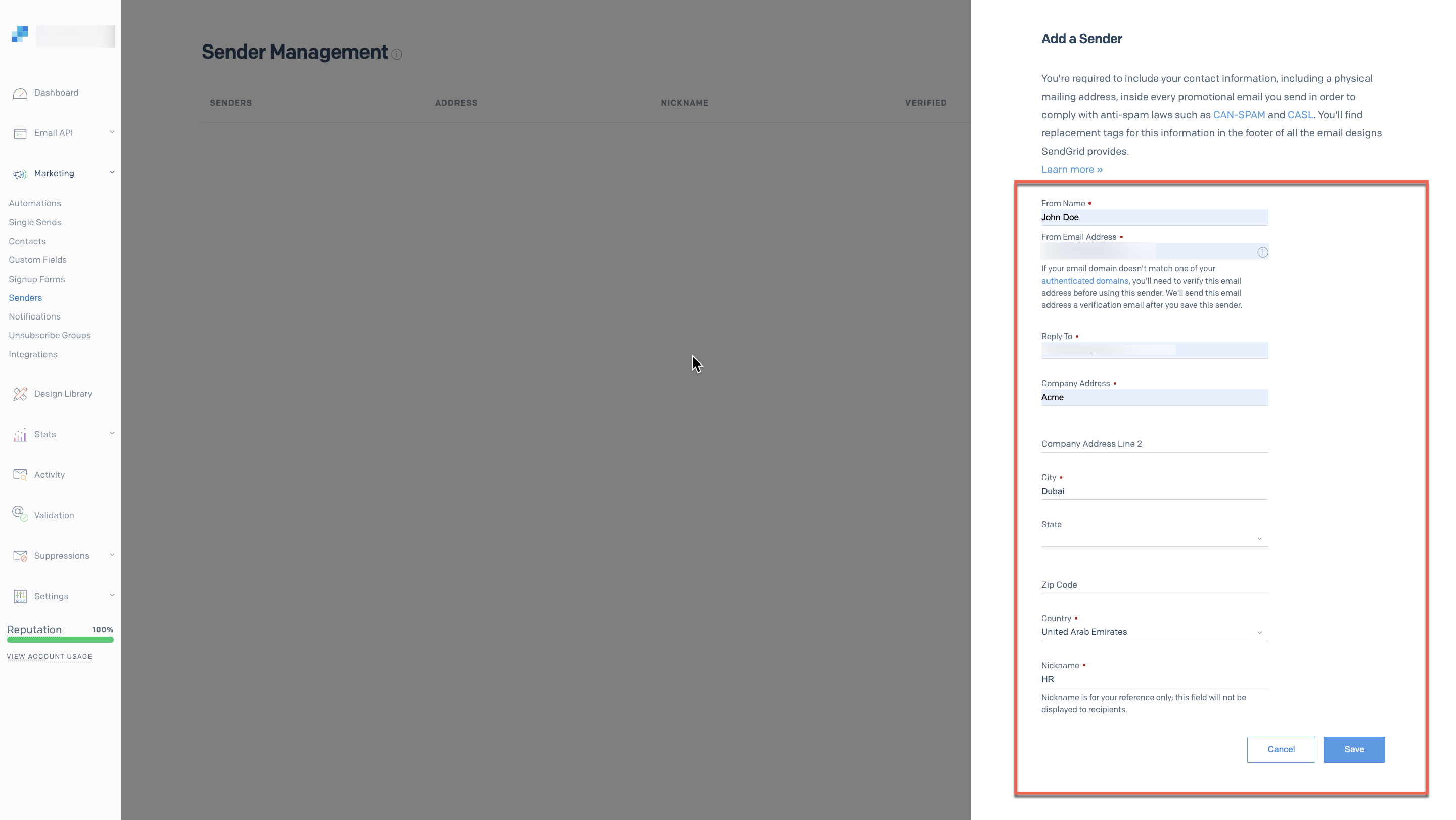
- Select Save.
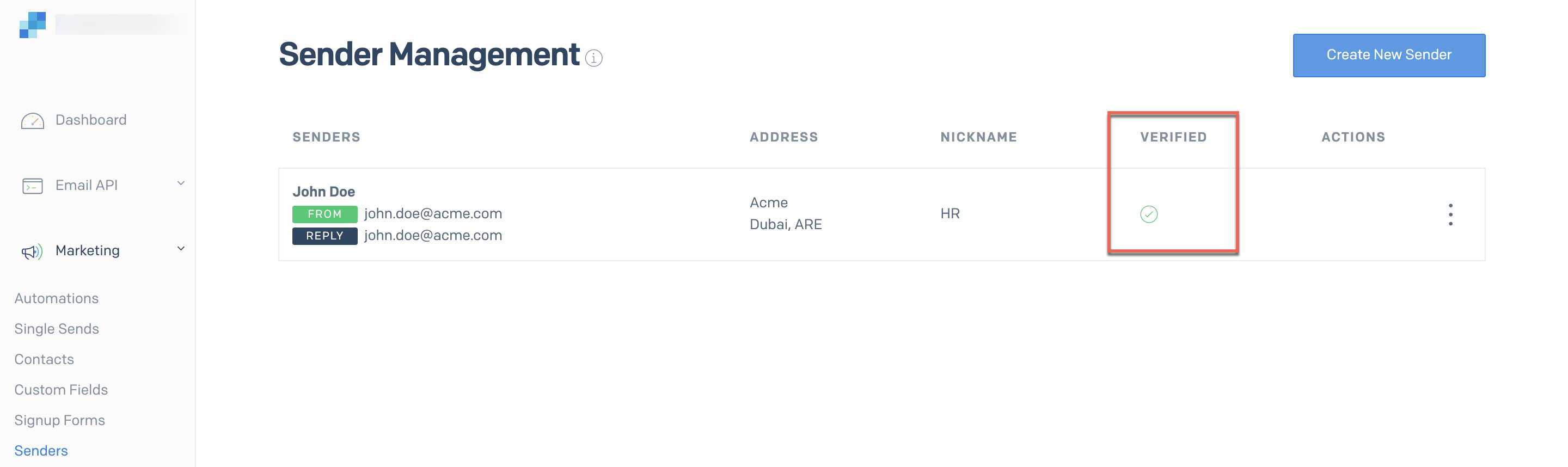
This saves the sender to your SendGrid portal and sends a verification email. Once the verification link in the email is clicked, the sender’s status is updated to verified in the SendGrid portal.
Step 2: Create the workflow
To create the workflow:
- Go to Definitions > Workflow and select + Define workflow.
- In the Code tab, paste the following JSON:
{
  "name": "HTTP_EndPoint_Monitoring",
  "description": "This workflow is designed to monitor the health of a specified HTTP endpoint",
  "version": 1,
  "tasks": [
    {
      "name": "check_endpoint",
      "taskReferenceName": "check_endpoint_ref",
      "inputParameters": {
        "uri": "${workflow.input.URL}",
        "method": "GET",
        "accept": "application/json",
        "contentType": "application/json",
        "encode": true
      },
      "type": "HTTP",
      "optional": true
    },
    {
      "name": "check_status",
      "taskReferenceName": "check_status_ref",
      "inputParameters": {
        "status_code_input": "${check_endpoint_ref.output.response.statusCode}"
      },
      "type": "SWITCH",
      "evaluatorType": "value-param",
      "expression": "status_code_input",
      "decisionCases": {
        "200": [
          {
            "name": "set_success_flag",
            "taskReferenceName": "set_success_flag_ref",
            "inputParameters": {
              "status_code": true
            },
            "type": "SET_VARIABLE"
          }
        ]
      },
      "defaultCase": [
        {
          "name": "sending_failure_alert",
          "taskReferenceName": "sending_failure_alert_ref",
          "inputParameters": {
            "from": "${workflow.input.sender_email}",
            "to": "${workflow.input.customer_email}",
            "subject": "HTTP endpoint failure",
            "contentType": "text/plain",
            "content": "This is an automated email to inform you that your HTTP endpoint has failed a health check.",
            "sendgridConfiguration": "SendGrid"
          },
          "type": "SENDGRID"
        },
        {
          "name": "terminate",
          "taskReferenceName": "terminate_ref",
          "inputParameters": {
            "terminationStatus": "TERMINATED",
            "terminationReason": "did not receive 200 status code"
          },
          "type": "TERMINATE"
        }
      ]
    }
  ],
  "inputParameters": [
    "URL",
    "customer_email",
    "sender_email"
  ],
  "schemaVersion": 2
}
- Select Save > Confirm.
After saving, update the SendGrid task with your actual values:
- In SendGrid Configuration, replace SendGrid with your integration name from Step 1 if it differs.
Step 3: Run the workflow
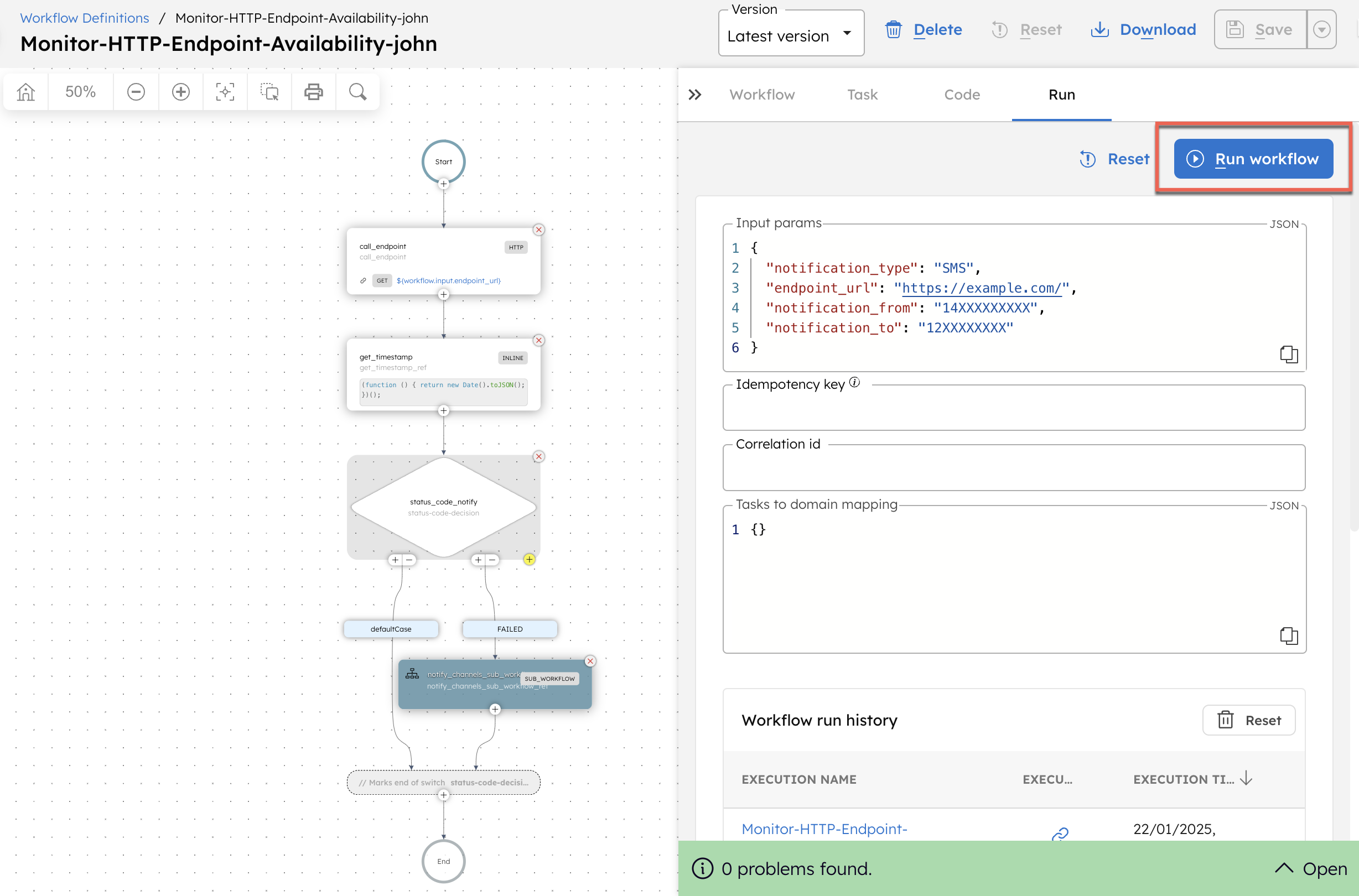
To run the workflow:
- From the
HTTP_EndPoint_Monitoringworkflow definition, go to the Run tab. - Enter the Input Params. For example:
{
 "URL": "https://orkes.io/",
 "sender_email": "<YOUR-SENDGRID-VERIFIED-EMAIL>",
 "customer_email": "<ALERT-RECEIVER-EMAIL>"
}
- Select Execute.
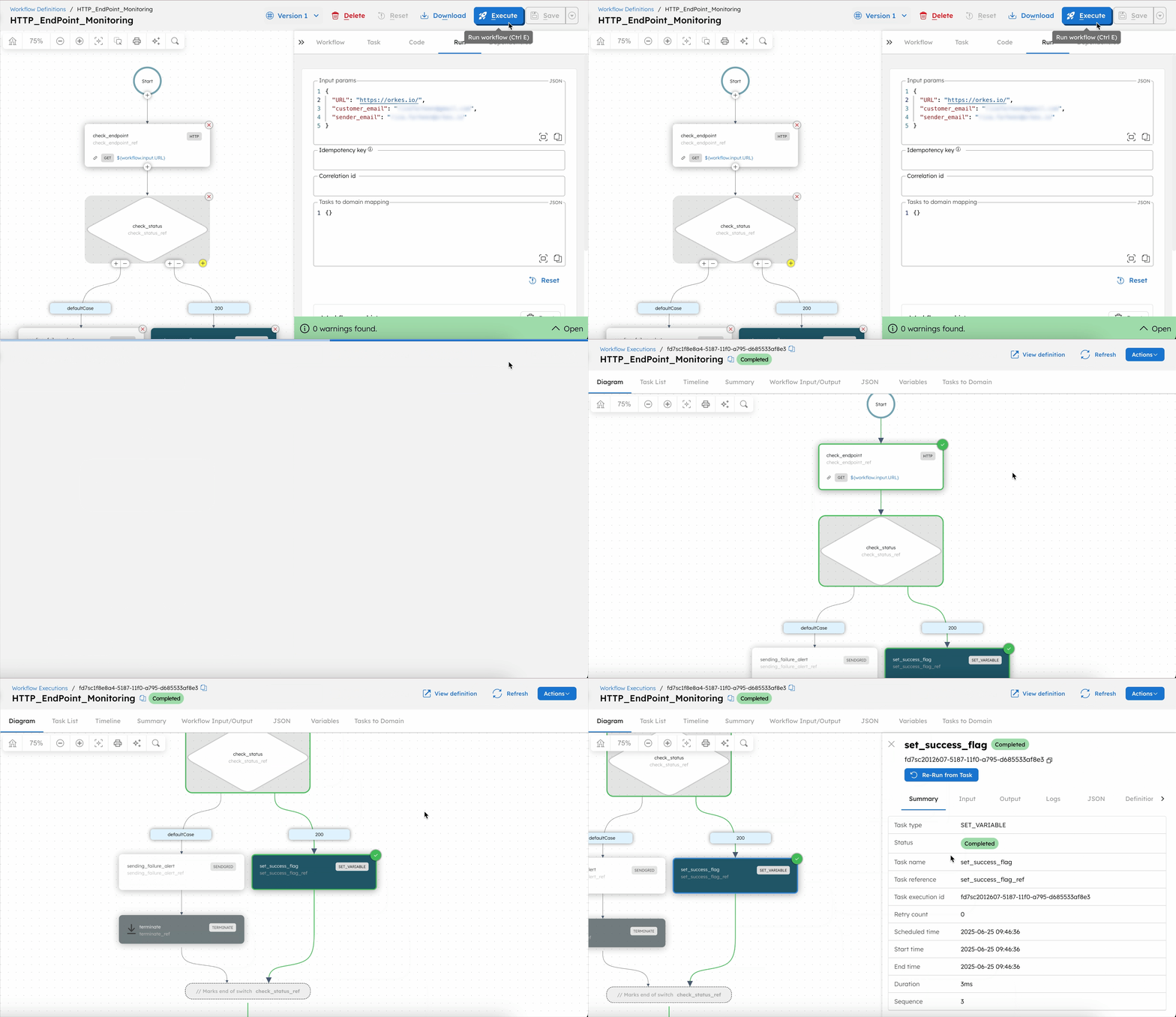
If the monitored HTTP endpoint is healthy, the workflow follows the success path (200) and completes successfully.
If the endpoint is down, the workflow follows the defaultCase, sends an alert email, and ends with a termination reason.
The user receives an alert email through SendGrid.
Workflow modifications
You can customize this workflow to fit your needs. For example
- Add notification channels: Replace or supplement SendGrid with Slack, Microsoft Teams, or Opsgenie for incident management.
- Integrate with ticketing systems: Use an HTTP task to open a Jira or Zendesk ticket automatically on failure.
- Customize alert content: Update the SendGrid task's subject and message body to include additional context such as the endpoint URL or failure reason.
- Add escalation logic: Chain additional Switch or HTTP tasks to route critical failures to on-call teams.